

WordPress Performance Optimization: Advanced Speed Techniques That Actually Work
Your WordPress site is slow. You’ve tried caching plugins, image compression, and a CDN, but the loading times still hover above three seconds. That delay costs you visitors, conversions, and search rankings. Most performance guides stop at surface-level fixes, leaving the real bottlenecks untouched. This article walks you through the advanced WordPress performance optimization strategies that deliver measurable speed improvements, from database tuning to server-level configurations.
Why Standard WordPress Performance Optimization Advice Falls Short
Most speed optimization guides recommend the same checklist: install a caching plugin, compress images, and use a CDN. These steps help, but they rarely solve the real problem. A site with all three can still load in four seconds because the advice ignores deeper issues like database bloat, inefficient queries, and server misconfigurations.
What do most speed optimization guides miss?
They treat every WordPress site the same. A basic blog on shared hosting might benefit from a caching plugin alone. A custom-built membership site with complex user roles and custom post types has different needs. The standard advice skips database optimization—cleaning up post revisions, transients, and orphaned metadata. It also overlooks query optimization. One poorly written SQL query in a custom function can add 500 milliseconds to every page load, no matter how good your cache is.
Why do caching plugins alone not fix slow sites?
Caching serves stored HTML to repeat visitors, cutting load time for them. It does nothing for the first visit or for dynamic content like user dashboards and checkout pages. If your theme loads 30 JavaScript files or your plugins make 50 database calls per request, caching masks the problem without fixing it. The initial load time stays high, hurting both user experience and Core Web Vitals scores.
How does a custom-built site change the optimization approach?
Custom sites have unique logic and data structures. Generic plugins often add overhead instead of reducing it. A real example: a client site with 50 plugins still loaded slowly. The bottleneck was a single custom function that queried the database on every page to display related posts. Removing that function and replacing it with a cached lookup cut load time by 40%. Standard advice would have missed this entirely. Effective website speed optimization for custom builds requires auditing the code, not just adding plugins.
Database Optimization: The Overlooked Foundation of Website Speed Optimization
Your database is the engine room of your WordPress site. When it’s cluttered with years of post revisions, expired transients, and spam comments, every page request takes longer. Each query has to sift through more data before returning results. That extra millisecond per query adds up fast, especially on pages with multiple database calls.
How does database bloat slow down your WordPress site?
WordPress stores everything: every auto-save, every revision of every post, every transient that was set to expire yesterday but never cleaned up. A site publishing five posts per week can accumulate hundreds of revisions per post within a year. Spam comments alone can add thousands of rows to your wp_comments table. Each of these rows is scanned during queries, increasing execution time. The result is a database that performs like a filing cabinet stuffed with old receipts.
What are the best practices for cleaning up your database?
Start with post revisions. Limit them to 3-5 per post using a simple code snippet in wp-config.php: define('WP_POST_REVISIONS', 5);. Next, delete auto-drafts older than 30 days and clear expired transients. Spam comments should be removed, not just marked as spam. These steps can shrink your database by 30-50%. For custom tables, review indexes. Adding indexes to wp_posts and wp_postmeta on frequently queried columns (like post_date or meta_key) speeds up common queries without altering your data.
Should you use plugins or manual queries for database optimization?
Plugins like WP-Optimize handle cleanup safely for non-developers. They provide a UI to remove revisions, transients, and spam with one click. Manual SQL queries give you precise control but require database expertise. A wrong query can delete critical data. If you’re comfortable with phpMyAdmin, run DELETE FROM wp_posts WHERE post_type = 'revision' AND post_date < NOW() - INTERVAL 30 DAY. For most site owners, a plugin is the safer choice. For custom sites, manual queries let you target specific bloat without touching unrelated tables.

Server-Level Tweaks for Real WordPress Performance Gains
Most WordPress performance optimization guides stop at plugins and image compression. The real leverage sits at the server level, where a few configuration changes can cut load times in half.
How does hosting choice impact website speed?
Shared hosting divides resources among dozens of sites. When one neighbor gets traffic spikes, your site slows down. A VPS or dedicated server gives you dedicated CPU and RAM. Pair that with Redis for object caching and Varnish for full-page caching, and you can drop response times from seconds to milliseconds. This is where website speed optimization starts — before a single line of code runs.
What PHP settings should you adjust for better performance?
Three PHP settings control how fast WordPress processes requests. Raise memory_limit to 256MB or higher so complex queries don’t hit a wall. Increase max_execution_time to 300 seconds for background tasks like cron jobs. Enable OPCache and set opcache.memory_consumption to 128MB — this caches compiled PHP scripts in memory, skipping the recompile step on every request. Without these adjustments, even a well-coded site will feel sluggish under load.
Is a CDN necessary for every WordPress site?
If your audience is global, yes. A CDN serves static assets from edge servers close to each visitor, reducing latency. But it adds complexity. Configure cache purging so updated content doesn’t serve stale files. Without proper rules, users see old CSS or images after a site update. For local businesses with a regional audience, a CDN may not justify the overhead — focus on server-level caching instead.
Server-level gzip compression and HTTP/2 support are non-negotiable. Gzip shrinks text-based assets by 70% during transfer. HTTP/2 multiplexes requests over a single connection, eliminating the queue of sequential downloads. Both are standard on modern hosts, but verify they’re enabled. A quick check with GTmetrix or WebPageTest confirms whether your server is delivering these basics.
Advanced Caching Strategies Beyond Basic Plugins
Basic caching plugins are a start, but they leave performance on the table. Real wordpress performance optimization requires understanding the layers beneath the surface.
What is object caching and how does it differ from page caching?
Page caching stores entire HTML files. When a visitor requests a page, the server delivers that static file instead of running PHP queries. It’s fast for anonymous users but breaks on dynamic content like shopping carts or user dashboards.
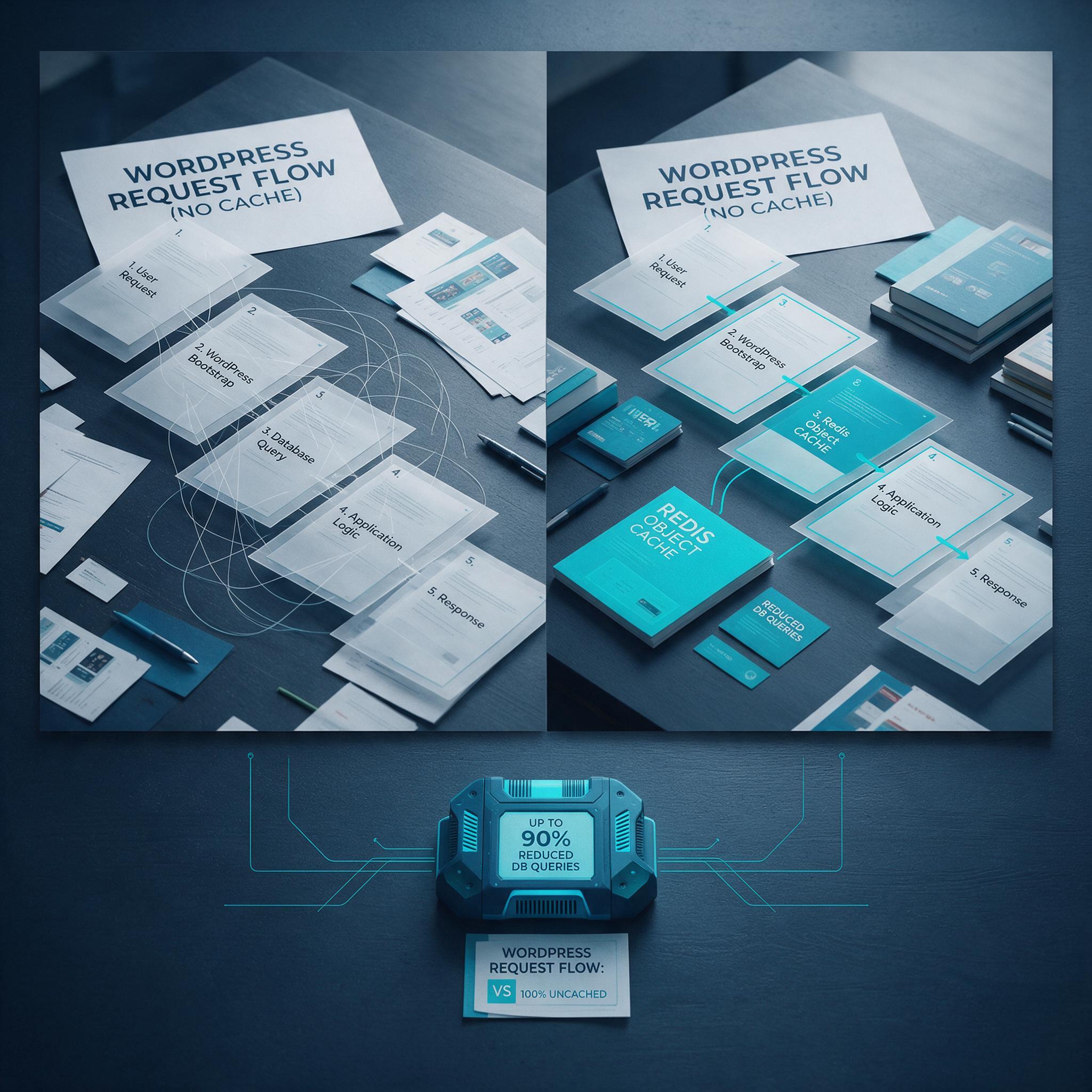
Object caching stores database query results in memory. Every time WordPress runs a query—for menus, widgets, or post metadata—object caching saves that result. The next request skips the database entirely. This is critical for sites with heavy plugin loads or custom post types.
How do you implement Redis or Memcached for WordPress?
Redis is the easier path. Install the Redis Object Cache plugin, configure your server’s Redis daemon, and enable caching. Most managed hosts support this with a toggle in their control panel.
Memcached requires more manual work. You need to install the Memcached extension on your server, configure the daemon, and use a plugin like W3 Total Cache to connect it. The performance difference between Redis and Memcached is negligible for most WordPress sites—choose the one your host supports natively.
When should you use full-page caching versus fragment caching?
Full-page caching works for static content: blog posts, landing pages, and about pages. It fails on pages with user-specific elements. An e-commerce cart, a member dashboard, or a personalized recommendation feed breaks under full-page caching because the HTML differs for each user.
Fragment caching solves this. Cache the static parts of a page—header, footer, sidebar—while leaving dynamic sections uncached. This reduces server load without breaking functionality. For example, cache the product listing page but exclude the cart widget.
Code-Level Optimization: Themes, Plugins, and Custom Development
Your theme and plugins are the biggest contributors to slow load times. A bloated theme loads scripts and styles on every page, even when they’re not needed. Multi-purpose themes are the worst offenders—they bundle sliders, portfolio grids, and mega menus into a single package, forcing your site to download code for features you never use. A custom theme solves this by loading only what each page requires.
How do bloated themes affect WordPress performance?
Every unnecessary script and stylesheet adds to your page weight. A theme with 20 unused JavaScript files can double your load time. The fix: audit your theme’s enqueued assets. Remove anything that isn’t actively used. Better yet, build a custom theme from scratch. It loads lean and fast.
What are the signs of a poorly coded plugin?
Plugins that run database queries on every page load are red flags. So are plugins that enqueue their scripts globally instead of only on pages where they’re needed. Check your plugin’s behavior: does it add JavaScript to your homepage when it’s only used on a contact form? That’s wasted bandwidth. Replace heavy plugins with lightweight alternatives or custom code.
How can custom development eliminate performance bottlenecks?
Custom development replaces bulky plugins with site-specific code. For example, a slider plugin might add 200KB of JavaScript and CSS. A custom HTML/CSS slider does the same job with 10KB. The same logic applies to contact forms, social sharing buttons, and analytics tracking. By writing code that targets your exact needs, you strip away every byte of bloat. This is where wordpress performance optimization moves from theory to practice—your site loads faster because there’s nothing extra to load.
Monitoring and Maintaining WordPress Performance Long-Term
Performance optimization isn’t a one-time project. It’s an ongoing discipline. Without consistent monitoring, your hard-won speed gains erode silently over weeks and months.
What tools should you use to track website speed over time?
Lighthouse scores give you a snapshot, but they miss the granular data you need for real diagnosis. GTmetrix provides filmstrip views of how your page loads frame by frame, showing exactly where bottlenecks appear. WebPageTest lets you run tests from different global locations and connection speeds, revealing geographic performance gaps. For server-side monitoring, New Relic tracks database query times, PHP processing, and memory usage in production. These tools catch what Lighthouse glosses over: slow database calls, inefficient loops, and resource contention under load.
How often should you audit your site’s performance?
Run a full performance audit monthly. Plugin updates, theme changes, and new content all introduce regressions. A single plugin update can add 300KB of JavaScript overnight. Monthly audits catch these drifts before they compound. Between audits, set up automated alerts for performance drops using tools like New Relic or UptimeRobot. When your Time to First Byte jumps by 200ms, you want to know immediately—not after a week of lost conversions.
What common mistakes undo your optimization efforts?
Three mistakes kill performance gains repeatedly. First, adding new plugins without testing their impact. Every plugin adds HTTP requests and database queries. Test each one in a staging environment before deploying. Second, ignoring image optimization for new uploads. Set your media library to automatically compress and resize images on upload. Third, skipping database maintenance. Post revisions, spam comments, and transients accumulate, bloating your database and slowing queries. Run weekly cleanup to keep your database lean. These small disciplines separate sites that stay fast from those that slowly crawl back to mediocrity.
Performance optimization isn’t a one-time project—it’s an ongoing discipline that requires the right expertise at every layer, from database queries to server configuration. That’s exactly the kind of work we do at WPSCALEOPS: we build and maintain custom WordPress sites engineered for speed, then keep them that way with proactive monitoring and maintenance.
Instead of wrestling with caching conflicts or hunting down slow queries yourself, hand that complexity to a team that lives in it daily. You’ll get a faster, more secure site—and the time to focus on the work only you can do.
Ready to put these techniques into practice? Tell us about your WordPress site and we’ll show you exactly where the speed is hiding.